Download
LiveGet the Chrome extension
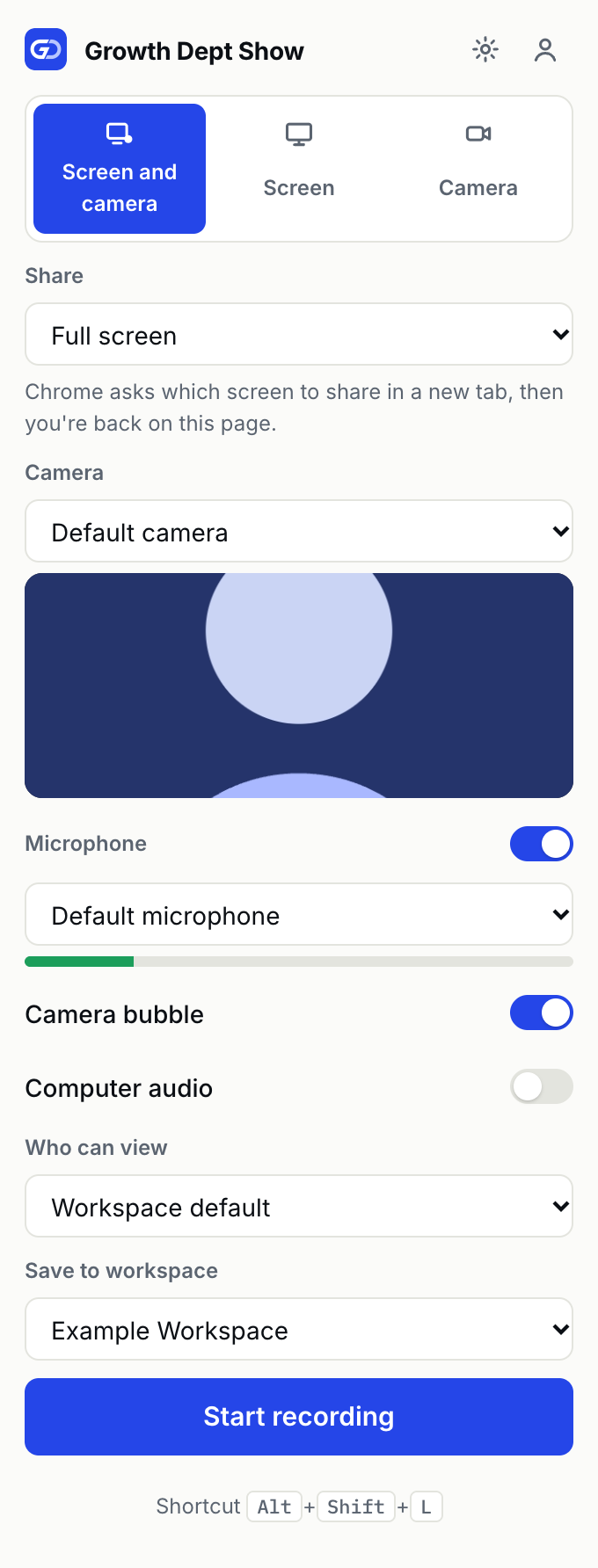
The extension records your screen and camera from any tab, with the camera bubble, drawing, click highlights and keyboard shortcuts. It runs in Chrome on a computer, version 116 or later.
Coming to the Chrome Web Store
While Show is invite-only, the extension installs from this zip with the steps below. Once it’s listed in the Chrome Web Store you’ll add it with one click, and Chrome will keep it up to date.
You need an invitation to record. Request access if you don’t have one yet.
Install
Six steps, about a minute
- 01
Download and unzip
Download the zip and unzip it into a folder you’ll keep, such as Documents. Chrome loads the extension from that folder each time it starts, so don’t delete it.
- 02
Open Chrome's extensions page
Type
chrome://extensionsinto the address bar and press Enter. - 03
Turn on Developer mode
Use the switch at the top right of the page. Chrome needs it for any extension that doesn’t come from the Chrome Web Store.
- 04
Load the folder
Click Load unpacked and choose the folder you unzipped. Growth Dept Show appears in the list.
- 05
Pin it
Click the puzzle piece to the right of the address bar and pin Growth Dept Show, so its icon is always there.
- 06
Connect your account
Click the Show icon, then Connect to Growth Dept Show. Sign in if you’re asked, and click Connect. Your recordings now go to your workspace.
Updating to a new version
Download the new zip, unzip it over the old folder, then click the reload arrow on Growth Dept Show’s card at chrome://extensions. You stay connected.
Checking the file
The zip’s SHA-256 checksum, if you want to confirm the download is ours:
3463f37a0646bea5f7c6bbb2c0168ae8b93de0904ec014b38e7e6ae2c72edb0a
Stuck on a step? Read the install guide, which covers the camera and microphone prompts too.
No install
LiveRecord in your browser, nothing to install
Signed in to Show, you can record from a browser tab: screen and camera, screen only or camera only, with your microphone and the tab’s or computer’s sound. In Chrome your camera and controls float in a small window over other apps.
| What you get | Extension | Web recorder |
|---|---|---|
| Screen, camera, or both | Yes | Yes |
| Full screen, a window or a tab | Yes | Yes |
| Who can view, before you record | Yes | Yes |
| Camera bubble on every tab | Yes | No |
| Drawing and click highlights | Yes | No |
| Keyboard shortcuts | Yes | No |
| Recovery if an upload stops | Yes | Yes |
Mac app
LiveRecords your screen, a window or just your camera from the menu bar, and updates itself when we publish a new version. For Macs with Apple silicon, macOS 13 or later.
- Download the disk image and drag Growth Dept Show into Applications.
- Open it from Applications. If macOS says it can’t check the app, open System Settings, then Privacy & Security, and choose Open Anyway.
- Allow Screen Recording, Camera and Microphone when the app asks, then sign in with your browser.