01 / Record
LiveRecord your screen, your camera, or both
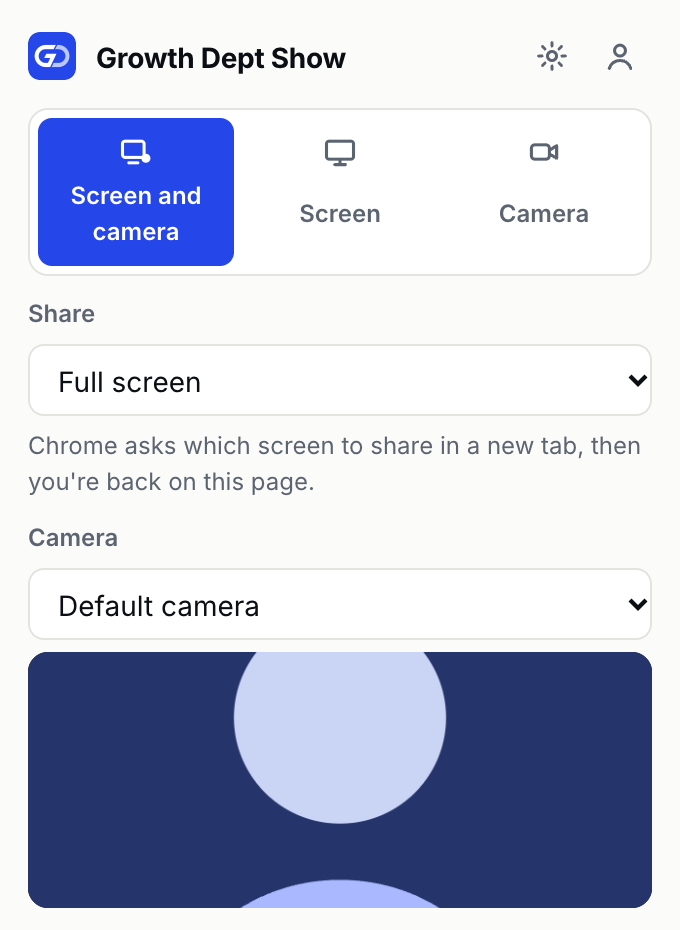
Start from the Chrome extension, or from a browser tab with nothing to install. Choose what to share, check your camera and microphone, and press Start recording. A countdown gives you a moment to get ready.
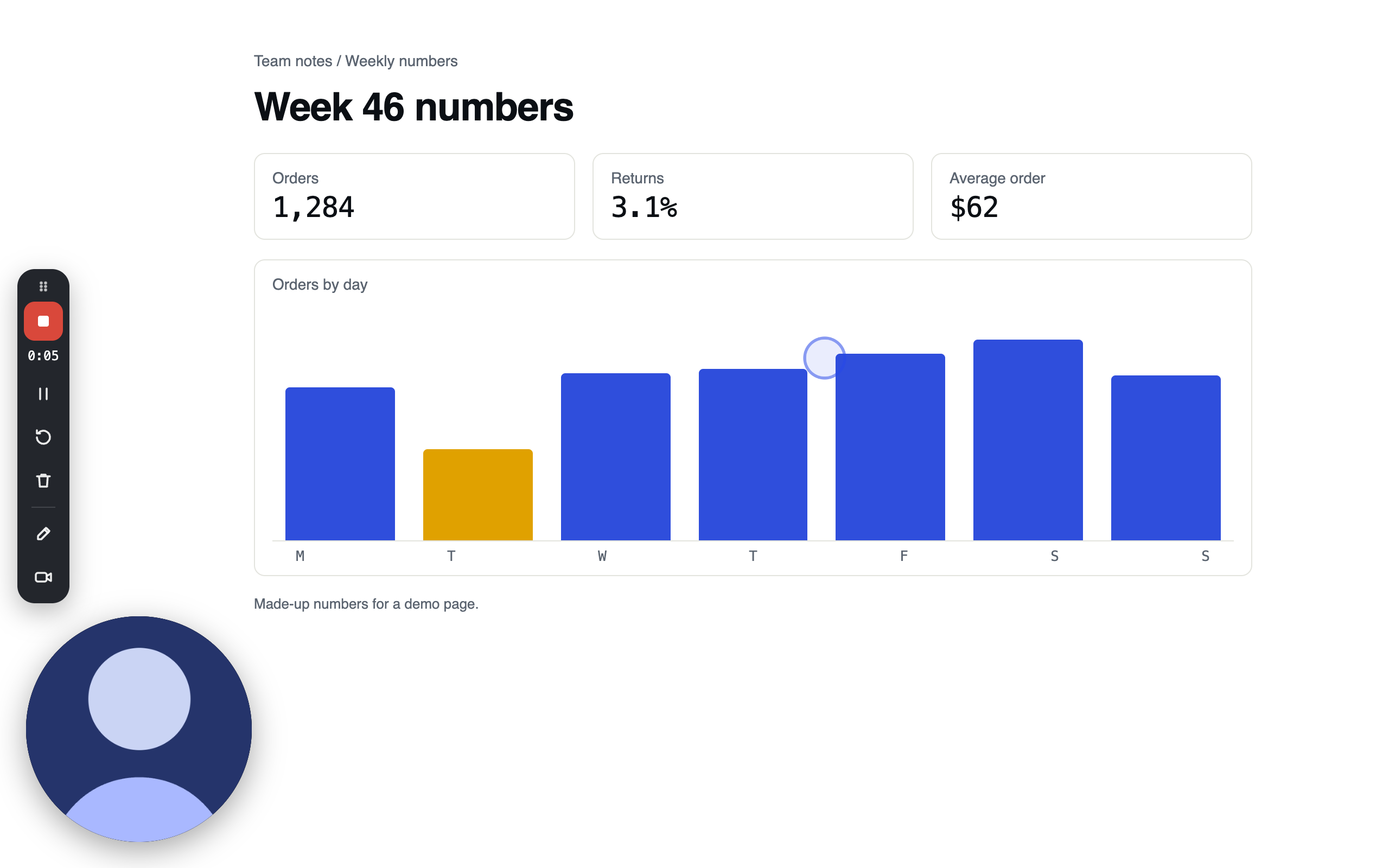
- 01.1Live
Choose what to record
Pick screen and camera, screen only, or camera only. Share your full screen, one window, or the tab you’re on. The current tab records without Chrome’s picker; for a screen or a window, Chrome asks which one and then brings you back.
- Choose a camera and a microphone, and see the camera and a sound level before you start.
- Record the tab's sound, or your computer's sound when you share a screen or window and Chrome allows it.
- Record at 720p, 1080p, 1440p or 4K. 1080p is the default.
- Choose who can view the video before you record: your workspace's default, anyone with the link, people in your workspace, or only people you choose.
- 01.2Live
Your camera, where you want it
The camera bubble follows you from tab to tab, so it’s in the recording wherever you go. Drag it out of the way of what you’re showing.
- Small, medium, large, or full screen when you want to talk face to face.
- A circle or a rounded square, mirrored or not.
- Float over other apps: the camera stays on top when you switch to a document or a design tool outside Chrome.
- Hide the camera and bring it back without stopping.
- Filters, and a blurred or replaced background, worked out on your computer.
- 01.3Live
While you record
The control bar sits at the edge of the screen and shows the time. It moves where you drag it, and you can hide it if you’d rather it wasn’t in the shot.
- Stop and share, pause and resume, restart, or delete the recording.
- Rewind and trim while paused: play back the take, cut the end off, and keep recording.
- Draw on the screen to circle the number you're talking about.
- Highlight your clicks so viewers can see what you pressed.
- Keyboard shortcuts for stop, pause, restart and cancel, which you can change in Chrome.
- 01.4Live
If an upload doesn't finish
Your recording is kept on your computer until it has uploaded. If the connection drops, the Show icon shows a ! and the recovery page lists what’s waiting, with Upload again, Download a copy and Delete.
- Show warns you when your microphone is muted or not picking anything up.
- If Chrome blocks the camera or microphone, the setup page says what to change, including the Mac's privacy settings.
- 01.5Live
Record in a browser tab, nothing to install
Signed-in people can record from Show itself. The web recorder has the same choices for screen, camera, microphone, sound and who can view, and in Chrome it floats your camera and controls in a small window. Drawing, click highlights and keyboard shortcuts need the extension.
- 01.6Live
The link works when you stop
The recorder sends the video in pieces while you’re still talking, so when you press Stop and share, the link is already on your clipboard and the video’s page opens as soon as the last piece is in.
Help articles
Other features
- 02 A page for every video, where the answers collect
- 03 You decide who watches, comments and downloads
- 04 Fix a video without recording it again
- 05 Record from your Mac's menu bar
- 06 Every video in its place, and easy to find
- 07 A summary, chapters and tasks, written from what you said
- 08 Put a video where people already are
- 09 Take a screenshot and send a link to it
- 10 Decide who gets in and what they can share
Show is invite-only while we build it with our clients
Tell us who you are and what you’d record. We read every request, and we invite people as we have room.