Skip to content

Features

Record it, send it, get your answer

Each part of Show carries a tag: Live if it works today, Being built if it’s on the way.

01 / Record

Live

Record your screen, your camera, or both

The extension records your full screen, a window or the tab you're on, with your camera in a bubble you can drag anywhere. Pause, restart or draw on the screen as you go.

  • Screen and camera, screen only, or camera only
  • A camera bubble you can drag, resize and float over other apps
  • Countdown, pause, restart and delete, from the control bar or the keyboard
  • Live Rewind: trim the end of a take while paused, then carry on
  • Draw on the screen, highlight your clicks, blur or replace your background
  • Up to 4K, with your microphone and the tab's or computer's sound
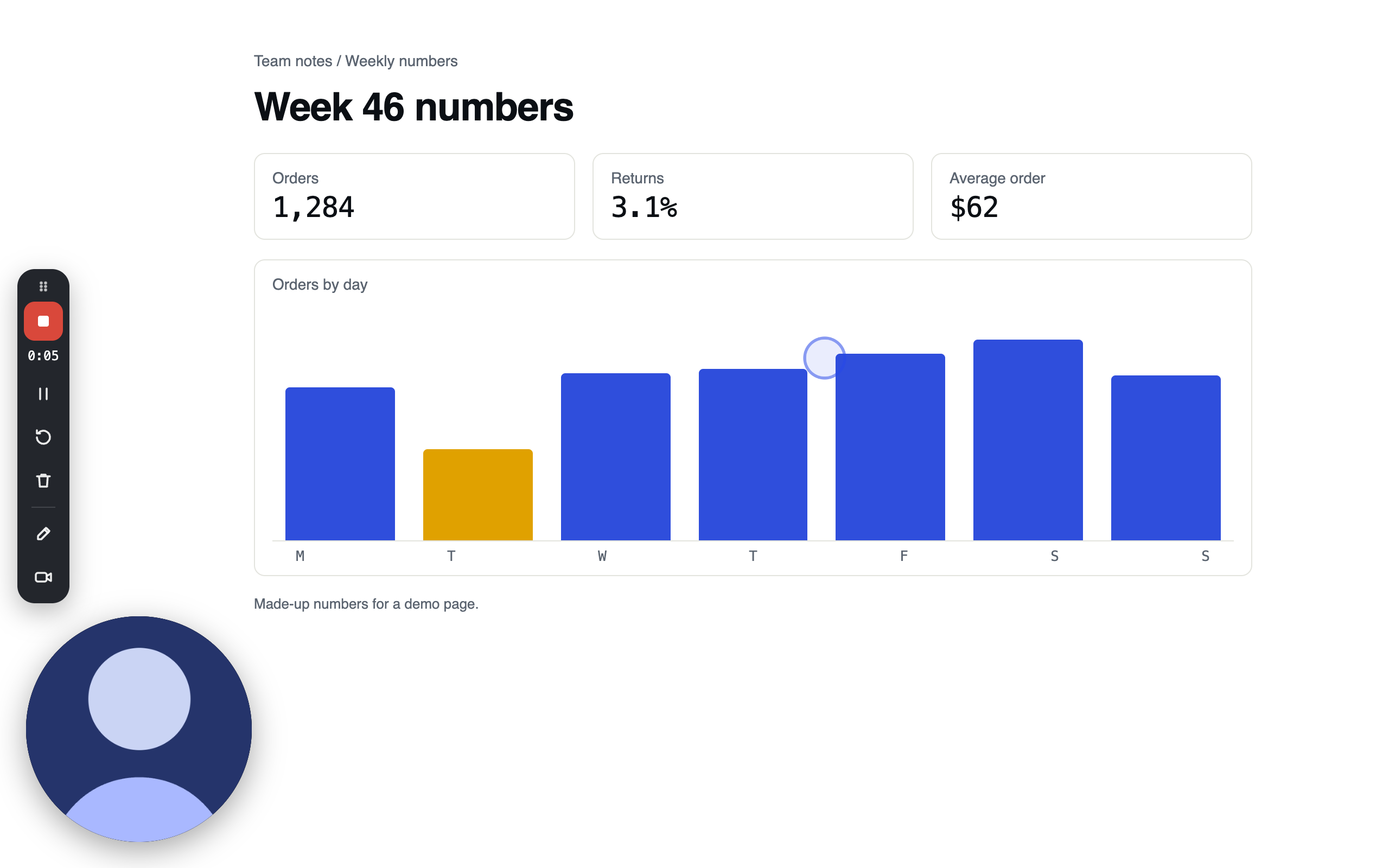
A recording in progress with the Growth Dept Show extension: the control bar on the left edge with Stop and share and the timer at 0:05, the camera bubble in the corner, and a ring where the mouse clicked
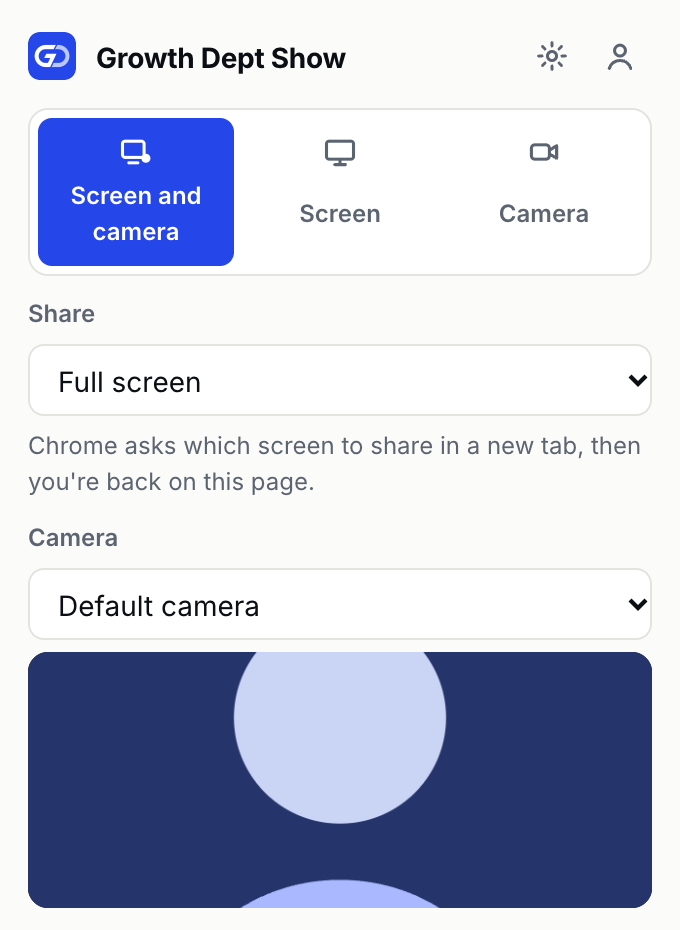
The extension's popup: Screen and camera chosen, Share set to Full screen, and the camera preview
Screenshots of the extension. The camera shows a drawn stand-in, and the page and its numbers are made up.

02 / Watch

Live

A page for every video, where the answers collect

Viewers comment on the exact second they're asking about, react with an emoji on the timeline, and read a transcript and a written summary.

  • Comments pinned to a moment, with replies and mentions
  • Emoji reactions that sit on the timeline
  • A transcript and captions for every video
  • A title, summary, chapters and tasks written from what you said

03 / Share

Live

You decide who watches, comments and downloads

Choose who can view before you record, and add a password or an end date when a video shouldn't stay open. Comments, reactions and downloads each switch on or off.

  • Anyone with the link, people in your workspace, or only people you choose
  • A password, and a date when the link expires
  • Comments, reactions and downloads on or off for each video
  • Video files that only play for people the settings allow

04 / Edit

Live

Fix a video without recording it again

Trim, cut out a section, add clips, or edit by deleting words from the transcript. Filler words and long pauses come out in one click.

  • Trim the start and end, and cut out a section
  • Add clips at the start, the playhead or the end
  • Delete words from the transcript to cut them from the video
  • Remove filler words and long pauses in one step

Show is invite-only while we build it with our clients

Tell us who you are and what you’d record. We read every request, and we invite people as we have room.